Build fails for C++/CX project with v141 platform toolset in Visual Studio 2019
由于它现已正式发布,因此我尝试切换到Visual Studio 2019,但是在构建基于C ++ / CX的项目时遇到问题。
我尚未将项目重新定位,但仍将其配置为使用v141平台工具集,即Visual Studio 2017 Build Tools。
据我所知,我已经在Visual Studio 2019中专门安装了所需的构建工具,这在这里应该很明显:
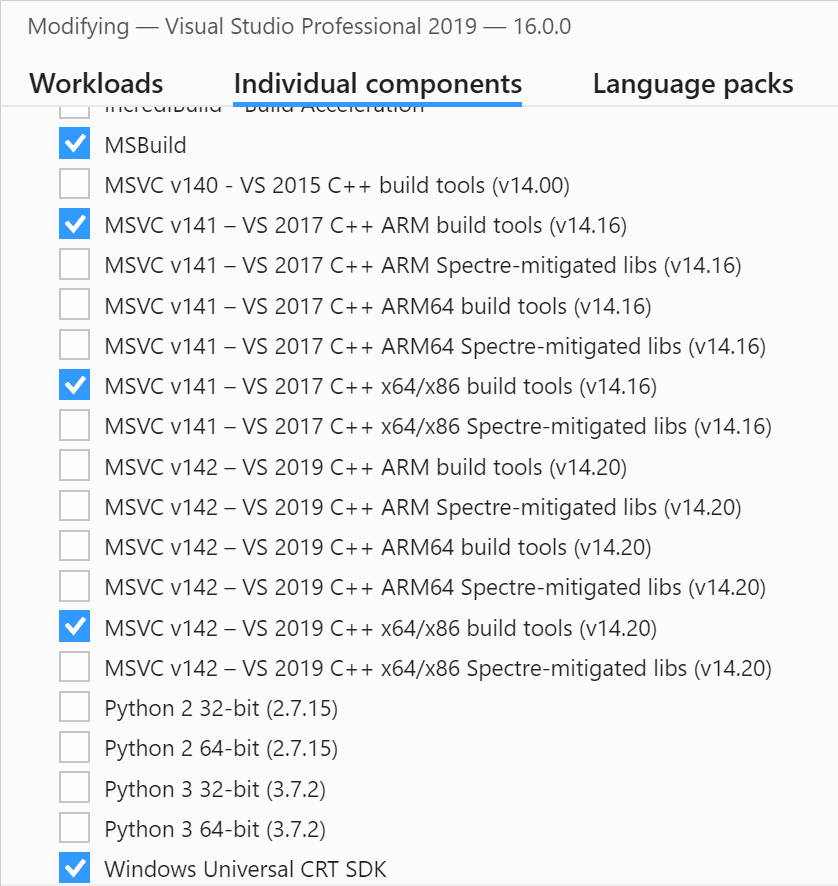

尽管如此,根据项目属性,仍未安装Visual Studio 2017生成工具:

当我构建项目时,出现以下错误:
1>C:\\Program Files (x86)\\Microsoft Visual Studio\\2019\\Professional\\MSBuild\\Microsoft\\VC\\v160\\Microsoft.CppBuild.targets(378,5): error MSB8020: The build tools for Visual Studio 2017 (Platform Toolset = 'v141') cannot be found. To build using the v141 build tools, please install Visual Studio 2017 build tools. Alternatively, you may upgrade to the current Visual Studio tools by selecting the Project menu or right-click the solution, and then selecting"Retarget solution".
我是否仍缺少安装中的某些组件,或者这是Visual Studio 2019中的错误吗?
编辑我应该指出,我仍然在同一台计算机上也安装了Visual Studio 2017。

我有一个类似的问题,但这就是我所缺少的。
您可以在右侧VS安装程序的"工作负载"选项卡上的"安装详细信息"下找到这些选项(即不在"单个组件"下)。
即使V141被明确显示为已安装,我在Visual Studio 2017中也遇到相同的问题。原来问题是在系统环境变量中将VCTargetsPath设置为" C:\ Program Files(x86)\ MSBuild \ Microsoft.Cpp \ V4.0 \ V140"。删除或取消设置此变量解决了该问题。
我怀疑此变量是在Visual Studio 2015的较早安装期间设置的。即使在卸载所有其他Visual Studio之后,该变量也从未删除并且问题仍然存在。
事实证明,(Windows运行时组件)项目未正确设置。在.vcxproj文件中,缺少ApplicationTypeRevision元素,从上面的项目属性(其中只有"常规配置属性"节点可见)中,这也是"明显的"(如果您知道要查找的内容...)。目标平台值为空。
紧接例如在.vcxproj文件中插入以下行: WindowsTargetPlatformMinVersion元素应该可以解决问题:
1 | <ApplicationTypeRevision>10.0</ApplicationTypeRevision> |
最有可能的是,还必须添加C ++通用Windows平台工具。尝试创建新的C ++ Universal Windows Platform项目时,可以使用v142版本。据我所知,该组件在Visual Studio Installer中不可见吗?安装v142组件后,相应的v141组件也可用于安装。